How I Built a Chrome Extension with AI
(Without Writing a Single Line of Code Myself)
TL;DR: I had Claude turn a tedious multi-step DevTools process into a one-click Chrome extension. I have no dev experience—I just described what I wanted, shared bugs as they came up, and iterated. A dozen rounds of back-and-forth later, I had a working tool. The takeaway: effective AI use is about clear communication, not technical knowledge.
(Download the extension here.)
I take a lot of screenshots for work, and I need them to be really high-resolution. For years I'd been following David Augustat's tutorial (here) on taking ultra high-res screenshots via DevTools.
In my enthusiasm for the crisp, client-ready screenshot, I very excitedly shared this process with some colleagues. While they, too, were enthusiastic about screenshot crispness, they were perhaps slightly less so than I was, and they were unwilling to embark on a multi-step process each time they needed to achieve screenshot nirvana.
Madness.
But the people had spoken.
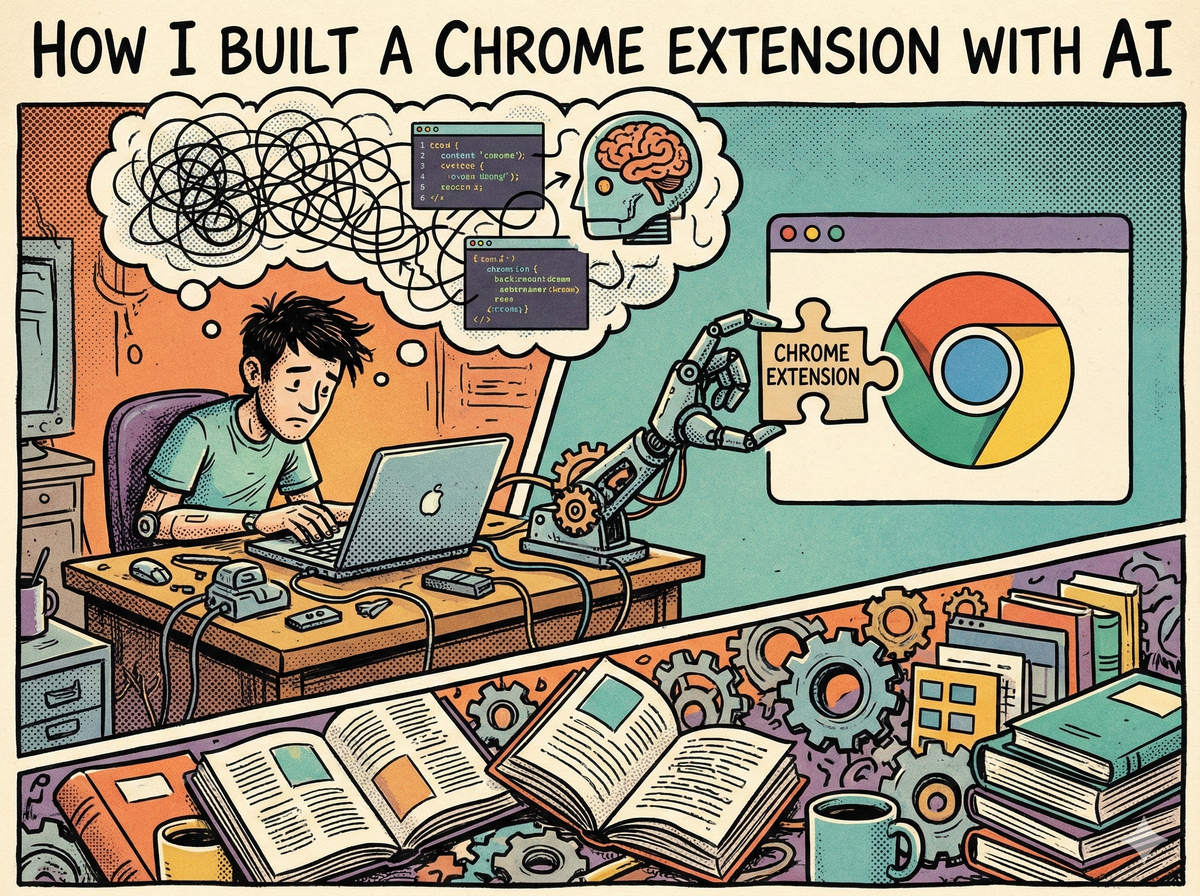
So I asked Claude if it could turn that multi-process into a Chrome extension.
Critically, I have zero development experience—I just knew what I wanted the end result to be.
Getting Something Working
I shared the blog post and Claude came back with a working extension within minutes. It let me choose a resolution multiplier (2×, 4×, 6×, 8×) and capture either the visible viewport or the full scrollable page.
I followed the installation instructions, loaded it into Chrome, and it worked.
Once I saw how easy that was, I asked for more. Could users select a specific area of the page to screenshot? Claude added an overlay system—click, drag a rectangle, release, and the screenshot downloads. This required injecting code into webpages, which meant new files and permissions.
(I'm using words here that mean things. I, unfortunately, do not myself know what those things mean. All I can tell you is that whatever Claude did, it worked. And the nice thing about having an AI assistant is that if you don't understand something, it can explain that thing to you. You can even set the tone of the explanation to "non-patronizing", which is nice.)
Things Started Breaking
I shared the extension with my team and that's when the real debugging began.
First bug: a teammate got an error about chrome.storage.local. Claude figured out it was a leftover function call that wasn't even needed. One iteration, fixed.
Second bug: another colleague said area selection was capturing the wrong part of the page. This one took longer. Through a bunch of back-and-forth, Claude narrowed it down—the issue only happened on certain dashboard-style web apps that have a scrollable panel inside the page rather than the page itself scrolling. My code was tracking the wrong scroll position.
The fix was clever: instead of trying to calculate coordinates (which apparently gets messy with nested scrolling), just capture the full viewport at high resolution and crop to the selection afterward. That way coordinates always match what's actually visible.
Third bug: viewport mode kept capturing a sliver of content below what I could see. Turned out the extension was using a hardcoded 1920×1080 instead of my actual browser window size. Easy fix once we identified it.
And so on.
Where It Ended Up
After maybe a dozen iterations, the extension captures in three modes (viewport, full page, or draw-to-select), outputs at various resolutions, copies to clipboard automatically, and handles weird page architectures without breaking.
Several manual steps became one click.
If you take a lot of screenshots for work, grab the extension here—it's free.
What Made This Work
I used Claude's Opus model for this, which is their most capable but also most expensive. It's also the model that just seems to get it—I find myself iterating less because it understands what I'm asking for on the first or second try. I have a Max subscription, which gives me access to Opus without worrying too much about usage limits. For a project like this—lots of back-and-forth, debugging, iterating—that mattered. I wasn't rationing my questions or trying to cram everything into fewer messages.
The thing that surprised me most was how the debugging process went. I couldn't look at the code and spot problems myself. But I could describe what was happening—"it's capturing the wrong area, but only on this type of site, and only after scrolling"—and that was enough for Claude to ask the right follow-up questions and zero in on the cause.
This is what I've come to understand about working with AI effectively: it's fundamentally about clear communication. That applies whether you're describing an initial vision ("turn this seven-step process into a one-click extension") or explaining what's going wrong ("my colleague got this error but I didn't" or "it works on regular websites but not on this dashboard"). You don't need to understand the technical details. You need to be specific about what you're seeing and what you want.
In the spirit of full disclosure, learning to code has always been something of a dream, but life got in the way. Using AI to build this wasn't a replacement for developing those skills—it's just the path of least resistance. I have some discomfort around that. But setting that discomfort aside, this was an incredibly useful experience in terms of identifying a need that could be resolved through a tool, rapidly prototyping, debugging, and getting it live.
I now have a tool built for exactly how I (and other team members) work, and I roughly understand what it's doing under the hood—not because I studied Chrome extension development, but because I watched it get built piece by piece.